Notifications center
The Notifications center in Bravura Security Fabric surfaces system notifications in real time through a panel accessible from the navigation bar. Notifications alert users to events such as workflow tasks, status changes, and other system activity without requiring a page refresh.
Accessing the Notifications center
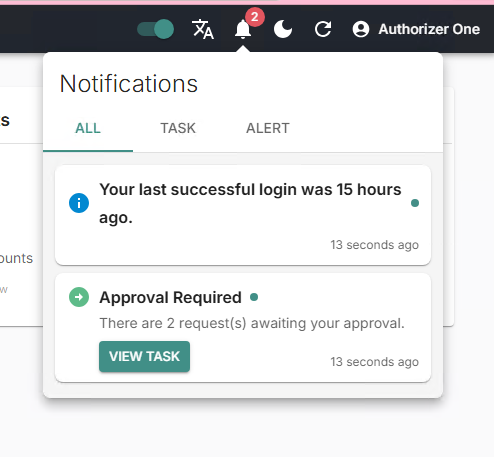
The Notifications center is accessible via the bell icon in the navigation bar. When unread notifications exist, a count badge appears on the bell icon indicating the number of unread items. Clicking the bell icon opens the Notifications center as a popover panel overlaying the current page.
Notification content
Notifications are categorized by task, alerts, and system messages. Icons indicate the importance of the message. A relative timestamp displays how long ago the notification was generated (for example, "5 minutes ago"). Hovering over the timestamp displays a tooltip with the absolute date and time.
Unread notifications are visually distinguished from read notifications in the list.
Real-time updates
Bravura Security Fabric delivers notifications in real time. New notifications appear, existing notifications update, and dismissed notifications are removed without requiring a page refresh. This behavior applies whether the Notifications center panel is open or closed. When the panel is closed, the unread count badge on the bell icon updates automatically as new notifications arrive.
Storage and session behavior
Notifications are stored per user. When multiple user accounts access Bravura Security Fabric on the same browser, each account maintains its own isolated set of notifications. Bravura Security Fabric clears all notifications for a user when that user logs out.
Managing notifications
All changes to notifications, including read status updates and dismissals, are reflected immediately in the Notifications center panel. No page refresh is required.
Open and close the Notifications center
Click the bell icon in the navigation bar to open the Notifications center panel.
Click anywhere outside the panel, or press Escape, to close it.
Mark a notification as read or unread
Open the Notifications center.
Locate the notification you want to update.
Click the read/unread action on the notification to toggle its status.
The unread count badge on the bell icon updates to reflect the change.
Dismiss a notification
Open the Notifications center.
Locate the notification you want to remove.
Click the dismiss action on the notification.
Bravura Security Fabric removes the notification from the panel.
Navigate to a task from a notification
Open the Notifications center.
Click the action link in the notification.
Bravura Security Fabric closes the Notifications center panel and opens the relevant task. After you complete the task, the notifications list reloads automatically to reflect any changes.