Getting started: Viewing groups
You can access the Groups app via the self-service menu. You may also receive an email notification containing a link to view a particular group.
To access the Groups app from the self-service main menu:
In the Resources section, click Groups.
Your group memberships are shown in Card view by default:
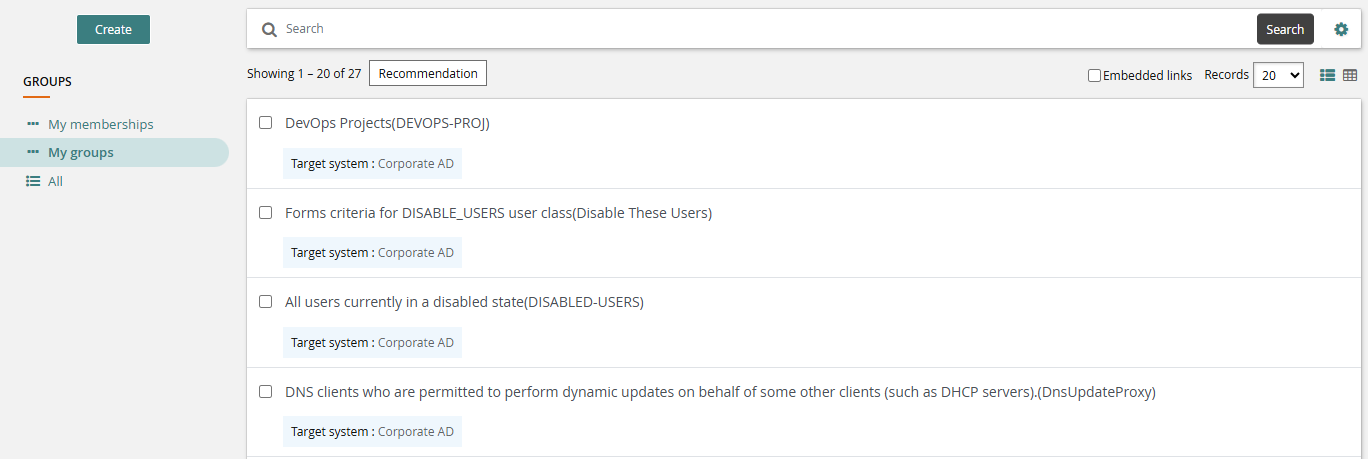
Click the
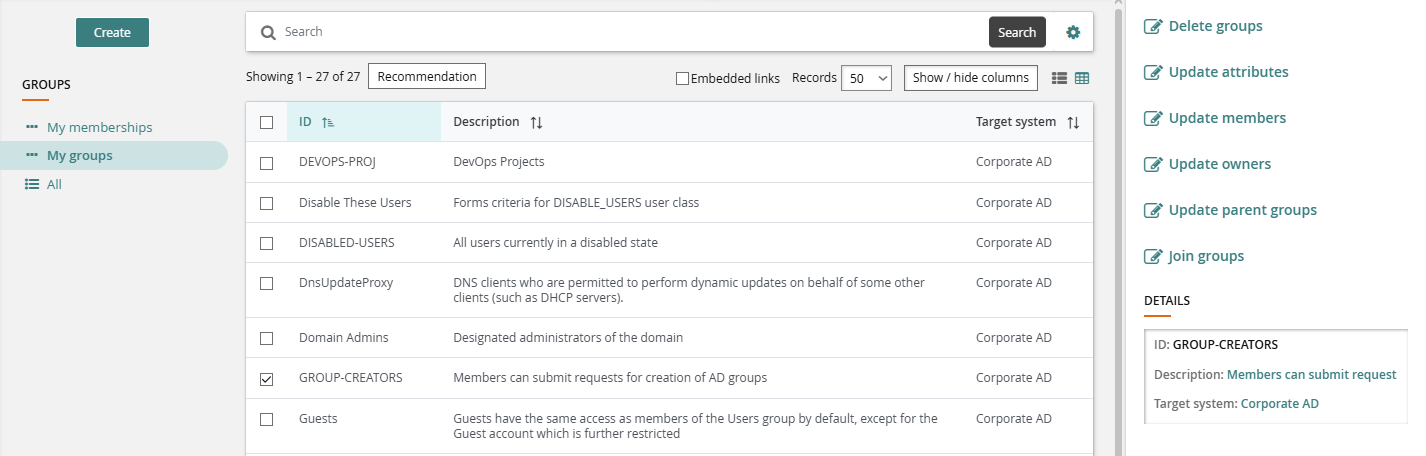
 icon in the top right corner of the middle panel to switch to Table view:
Click My groups in the Filter panel to view groups that you own.
Click All in the Filter panel to view all groups managed by Bravura Security Fabric .
Select one or more groups from the Results panel, then select an action from the Actions panel.
The available actions depend on the groups selected and the user's permissions.
Group recommendations
Product administrators can configure the Groups app so that users see recommendations for adding or deleting group memberships based on consistency with their peer group.
A peer group is a group of users who share a common attribute; for example, users working at the same location or in the same department, or with the same manager.
When configured, users can show or hide recommendations by clicking the Recommendations button in the middle panel. Recommendations are visually represented by a color bar with a number stating the percentage of peers who are members. This can help the user to decide whether to add or delete a membership.
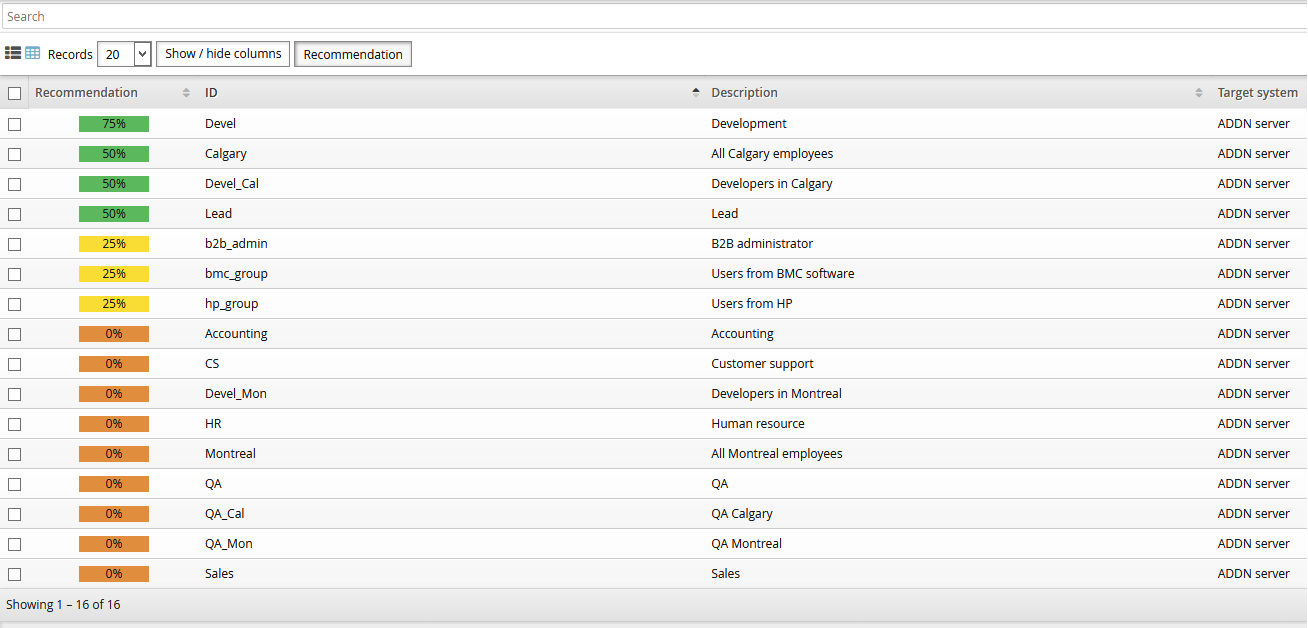
In the above screenshot:
 Membership is not recommended. None of the user’s peers are members.
 Membership is recommended. 25% of the user’s peers are members.
 Membership is strongly recommended. 75% of the user’s peers are members.