Database maintenance
The Bravura Security Fabric database and database server require ongoing maintenance to prevent poor performance, system downtime and data loss.
For additional information on SQL database maintenance, see the best practice maintenance recommendations from Microsoft.
Scheduling database maintenance
The scheduling requirements for database maintenance depend on whether you are performing routine maintenance or a database version upgrade.
General maintenance
Do not schedule database maintenance tasks such as defragmentation, index rebuilding, and statistics recalculation at the same time as auto discovery, automated user administration, automatic assignment, or other instance processes that update many records across multiple tables. Running these tasks concurrently causes process locking, which can cause the instance process, database maintenance, or both to stop responding.
Do not schedule database maintenance at the same time on all databases that serve the same application.
For general maintenance that lasts more than a few minutes (such as index rebuilding, manual or automatic resynchronization of nodes, OS patching, or database patching), take the Bravura Security Fabric nodes that use that database out of the load balancer and stop the database services on those nodes. Disable any tasks that update the database during this maintenance. See Handling maintenance outages for the outage procedures.
Maintenance on the Bravura Security Fabric node may be performed at the same time as its database (for example, OS upgrades). Take down the Bravura Security Fabric node before the database, and bring up the database before Bravura Security Fabric.
Warning
Using the automated data resync buttons to initiate an automated resynchronization of data can lead to extended outage on the source and destination nodes, and in some cases, loss of data, configuration, and application functionality. Do not trigger automated resynchronization in production instances unless you cannot use the manual method and you have already scheduled an outage.
Database version upgrades
A database version upgrade (for example, upgrading SQL Server from 2016 to 2022) requires full instance downtime. The scheduling considerations differ from general maintenance:
Ensure no intensive tasks are scheduled on Bravura Security Fabric or the database during the maintenance window. Unlike general maintenance where partial outages may be acceptable, a database upgrade requires all nodes in the instance to be stopped.
In a replicated environment, Bravura Security Fabric requires that all nodes run the same database version. Schedule database maintenance across all nodes simultaneously.
Verify that the upgrade version is compatible with Bravura Security Fabric before scheduling the maintenance window.
If you are also performing an OS upgrade, schedule both upgrades within the same maintenance window. See Combined OS and database upgrades for additional considerations.
Before database maintenance starts
Complete the following steps before starting database maintenance. These steps assume you have already initiated a single-node or full instance outage as appropriate for the maintenance type.
Ensure no bulk processes are running on the application nodes that update the database being maintained. This includes scheduled processes such as auto discovery.
Warning
Do not interrupt the auto discovery process by manually stopping
psupdateor by stopping application services whilepsupdateis running.Interrupting auto discovery may leave behind broken queues or other data, which can lead to data loss and lost access for a large percentage of users.
If you need to run database maintenance, plan ahead and disable the PSUPDATE scheduled job in advance. This includes any other custom automated means of running the process or other bulk automation.
Verify that the
iddbservice is stopped and outgoing replication queues have subsided. If you followed the outage procedure, these steps are already complete.If
cgi\nodestat.exe(or its REST endpoint equivalent) is used for load balancer health checks, stoppingiddbis sufficient to stop incoming requests to the node. See also: Automated node check when using a load balancer.Take a full backup of the database and verify that you have a tested rollback path.
Additional steps before a database version upgrade
If the maintenance involves upgrading the database server version (for example, upgrading SQL Server from 2016 to 2022), complete the following additional steps before starting the upgrade:
Perform the steps above on all nodes in the instance, not just those connected to the database being upgraded. A database version upgrade requires full instance downtime.
Verify that the target database version is compatible with Bravura Security Fabric.
Check the password policy requirements of the target SQL Server version. Newer versions may enforce stricter password complexity policies. Verify that the password used by the
iddbservice to connect to SQL Server meets the requirements of the target version. If it does not, update the password in SQL Server and useiddbadmto update it on the Bravura Security Fabric side before proceeding with the upgrade.Confirm the change by starting the database service. If it starts successfully, the password update was successful. Stop the database service again before proceeding to the next steps.
Completing this step reduces ambiguity if the database service fails to start after the upgrade due to SQL Server password complexity enforcement.
After completing database maintenance
After database maintenance is complete, restore application function by following the restore steps in the single-node outage procedure. In summary:
Start the
iddbservice.Monitor
idmsuite.logas the product services (especiallyiddb) start up. Address any errors before continuing.Re-add the application nodes to the load balancer.
Re-enable any scheduled jobs that were disabled before maintenance, such as the PSUPDATE scheduled job.
Note
If the maintenance involved restoring the backend database from a backup (for example, manual resynchronization of data across nodes), the SQL Server login may become dissociated from the database user. This prevents the iddb service from authenticating to the database. If iddb fails to start after a restore, verify the SQL Server login-to-user mapping and use iddbadm to update the database connection settings if needed.
Additional steps after a database version upgrade
If the maintenance involved a database version upgrade, complete the following additional steps:
Verify that the
iddbservice starts without errors on all nodes. If the service fails to start, check whether the SQL Server password policy has changed. Newer SQL Server versions may enforce stricter password complexity requirements. If necessary, update the database account password and useiddbadmto update it on the Bravura Security Fabric side.In a replicated environment, verify that replication is functioning correctly between all nodes before resuming normal operations.
Restore application function on all nodes in the instance (steps 1-4 above), since a database version upgrade requires full instance downtime.
Combined OS and database upgrades
If you are upgrading both the operating system and the database server at the same time (for example, upgrading from Windows Server 2016 + SQL Server 2016 to Windows Server 2022 + SQL Server 2022), schedule both upgrades within the same maintenance window.
Before starting:
Initiate a full instance outage.
Complete all applicable steps in Before database maintenance starts, including the additional steps for database version upgrades.
Perform the OS upgrade first. Follow the steps in Operating system patch management for the OS upgrade portion. Shut down all Bravura Security Fabric services before starting the OS upgrade.
Perform the database upgrade after the OS upgrade is complete and the application registry keys and prerequisites have been verified.
After both upgrades are complete, follow the steps in After completing database maintenance.
Note
Take down the Bravura Security Fabric node before the database server, and bring up the database server before the Bravura Security Fabric node.
Modifying database connection details
If the database server credentials change (database server name, database name, user ID, or password) use the iddbadm program to update the database information.
See iddbadm for usage information.
Use the iddbadm program to modify and configure the credentials used by iddb to connect to the database backend.
Run iddbadm with the following arguments:
iddbadm.exe -instance <bravura_instance> -dbtype MSSQL [-database <database>] [-dbserver <dbserver>] -dbuser <bravura_dbuser> -password <password> [-iddbport <iddbport>] [-integrated]
Argument | Description |
|---|---|
-database <database> | The MSSQL database name |
-dbserver <dbserver> | The MSSQL database server or instance connection string |
-iddbport <iddbport> | The database service TCP port |
-dbtype <dbtype> | The database type (MSSQL) |
-dbuser <dbuser> | The ID of the user that connects to the database |
-instance <instance> | The Bravura Security Fabric instance name |
-password <password> | The database server user password |
-integrated | Use Windows Integrated Authentication instead of a password |
-showconfig <showconfig> | Show current DBMS backend configuration |
To change the dbms credentials for a MSSQL server:
iddbadm -dbtype MSSQL -dbuser mssqluser -instance idminstance -password dbuserpassword -database dbname -dbserver dbserver.com
To change the authentication mode for a MSSQL server from SQL Server authentication to windows authentication:
iddbadm -integrated
Monitoring database server health
Monitor the database server disk space using the Bravura Security Fabric health check feature or an alternative monitoring tool.
The auto discovery process replaces entire data sets in some large tables whenever it runs. This can cause very large transaction or temp files to appear overnight.
Monitor the data, transaction, and log file locations of every Bravura Security Fabric node's backend database to ensure they do not run out of space:
If the database engine is configured to clean up, the files may be much smaller when inspected after the cleanup.
Maintain at least 50% free space on the drives, shares, or SANs that host those files. This ensures that the database always has enough space to function as expected. Bravura Security recommends at least 500GB of hard drive storage for a Bravura Security Fabric server to start with, split between a partition for the data files and a separate partition for the transaction log. Monitor the free space on both partitions over time, and provision more space whenever the free space drops under 20% on either partition.
Monitor RAM availability and investigate any services, operating system utilities, other applications, or the operating system kernel that may be leaking or accumulating RAM over time.
Replication telemetry
For instances with more than one node in replication, the Database replication page lists all nodes in the instance. Click a node to view its replication details. The application UI shows only the most recent replication data (up to five minutes of statistics at the bottom of the page).
The telemetry files in the instance's db\ directory provide more detail, as shown in the following example:
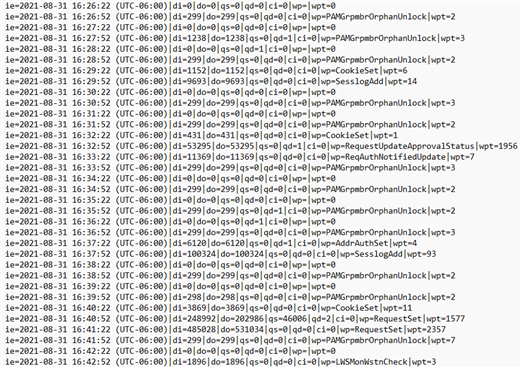
The receive queue telemetry (-recv-) is useful for troubleshooting replication delays caused by slow or stuck execution on the node where the files are located.
The send queue telemetry (-send-) is useful for troubleshooting inter-node communication errors, for example when:
The network is down between the sending node (where the file is located) and the node named in the file name.
The Database service (
iddb) is down or in DB_COMMIT_SUSPEND mode on the node named in the file name.
These files log one entry every 30 seconds with the following data:
ie— timestamp of the event.di— data in: the amount of data added to the queue in that 30-second interval.do— data out: the amount of data processed on the current node's database and removed from the queue in that 30-second interval.qs— queue size, in bytes.qd— queue delay, in seconds.ci— current item: the procedure that the receive queue is currently running. This field does not exist for send queue telemetry.wp— worst proc: the stored procedure that ran longest during that 30-second interval.wpt— worst proc time: how long that stored procedure ran, in milliseconds.
Use the qd entries collected from a telemetry file over a specific duration in a third-party spreadsheet or log analyzer to graph the replication delay for a day, week, or month.
Failed stored procedures
If a stored procedure in Bravura Security Fabric fails for any reason, the Database Service (iddb) records the date and time, stored procedure name, its arguments, and the failure reason in the db\iddb-failed-procs-*.log files in the instance directory. For example:

The Database Service (iddb) creates these log files whenever a new node is added. The failure logs for receive and send queues are created as empty (0 byte) files, and the Database Service appends data to them as failures occur.
These log files are not rotated with the rest of the Bravura Security Fabric logs. They exist for maintenance purposes, and if non-empty, an administrator must review them to determine whether corrective action is needed. If an unfamiliar stored procedure fails, open an issue with support@bravurasecurity.com to determine whether action is needed.
Some stored procedure failures are benign. For example, an error updating an account during auto discovery may be made obsolete by the next auto discovery run.
Warning
In replicated instances, stored procedures that fail on one node but succeed on other nodes can cause the backend databases to fall out of synchronization over time. Review failed stored procedure logs promptly to identify whether data recovery is needed.
Log file naming conventions
The file names indicate the origin of the stored procedure:
Files with "receivequeue" in the name contain stored procedures that originated on the node named in the file and failed when replicated to this node. These correspond to the receive queue in Manage the system > Maintenance > Database replication.
Files without "receivequeue" contain stored procedures that originated and failed locally on the node named in the file. These correspond to the send queue.
Maintain failed stored procedure log files
To maintain these files:
Review the contents of each file to determine whether the failures represent data that needs to be recovered or can be safely acknowledged.
Back up the file contents to a location outside the instance directory for audit purposes.
Empty the files (reduce them to zero bytes). After the next health check, the "Failed-sprocs" warning clears from the dashboard.
Why some warnings appear as errors
Some stored procedure failures are warnings rather than true errors. For example, an "Authorizer already assigned" message indicates that an implementer accepted a task after another implementer had already accepted it. If the correct implementer is assigned, this message can be safely ignored.
These warnings appear as errors because of how T-SQL handles exceptions. If the severity of the raised error is not high enough, iddb cannot retrieve the warning message without treating it as a failure. As a result, some informational messages are logged at the error level.