REST API quick start
This guide provides a simple example using the REST API. This is done using Swagger UI , which is included with Bravura Security Fabric .
Swagger UI is an interactive API documentation that allows users to execute REST API endpoints directly in the browser. By using Swagger UI, it will be easy to visualize what is being passed into the REST API and what is being returned. In addition, Swagger UI does not require any additional installation.
This example involves a user changing their own account password and verifying that it has been changed. The workflow is as follows:
A user logs into the REST API and gets an authentication (bearer) token.
The user calls an endpoint to get a list of their associated accounts.
The user calls an endpoint to get an account based on a key.
The user calls an endpoint to change the account’s password.
The user calls an endpoint to get the result of the password change.
The user calls an endpoint to test the account’s password.
The user calls an endpoint to get the result of the password test.
The user logs out of the REST API.
By default, users can list their own accounts, and change and verify their own passwords, however users cannot view or act on other users’ accounts. This is enforced using Open Policy Agent authorization policy rules. Thus, some endpoints cannot be run unless additional permissions are granted. See our REST API Reference for more information.
In 12.9 and later, every REST API call that uses POST, PATCH, PUT, or DELETE requires cross-site request forgery (CSRF) protection. When you request a token, the response sets a BravuraSecurityFabric-CSRF-Token cookie. Each of these calls must send the bearer token, that cookie, and an X-CSRF-Token header whose value is the URL-decoded cookie value. GET, HEAD, and OPTIONS calls do not need the header. A call that fails the check returns HTTP 403 with the message CSRF token validation failed.
Swagger UI does not send the X-CSRF-Token header, so a PATCH call from Swagger UI returns HTTP 403. In 12.9 and later, this guide uses Swagger UI to log in and to run the GET calls, and uses curl for the two PATCH calls.
Preparation
The user must be provisioned to use the REST API. To do this, add the user to the _EXPLICIT_REST_API_USERS_ user class. An example user User1 will be used throughout this QuickStart guide.
Log into the Bravura Security Fabric instance as a superuser.
Go to Manage the system > Policies > User classes.
Locate and click on _EXPLICIT_REST_API_USERS_.
Click Explicit Users.
Click Select…
Locate and select the user that will be used to access the REST API (User1).
Click Add.
Login
To access the endpoints, the user needs to log in to the REST API. Upon successful authentication, a bearer token will be issued which will grant the user access to the REST API for 3600 seconds (1 hour).
From a web browser, go to:
https://<ip-of-fabric-instance>/<instancename>/api/rest/swagger/index.htmlIf the instance is not using SSL, go to:
http://<ip-of-fabric-instance>/<instancename>/api/rest/swagger/index.htmlClick Authorize.
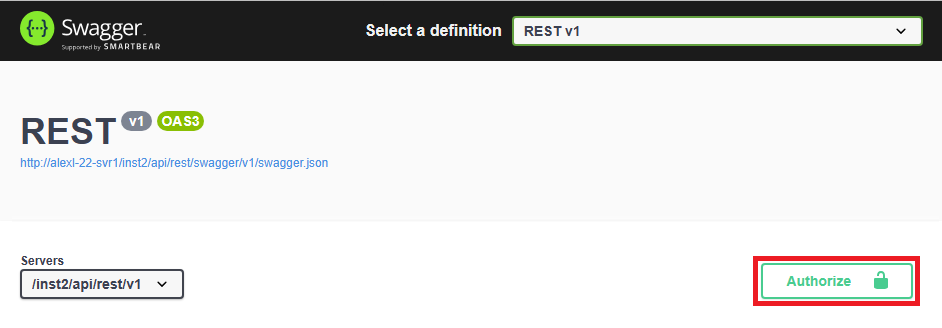
Enter the following:
username: User1
password: <password-of-User1>
client_id: passwordclient
Scopes: select all
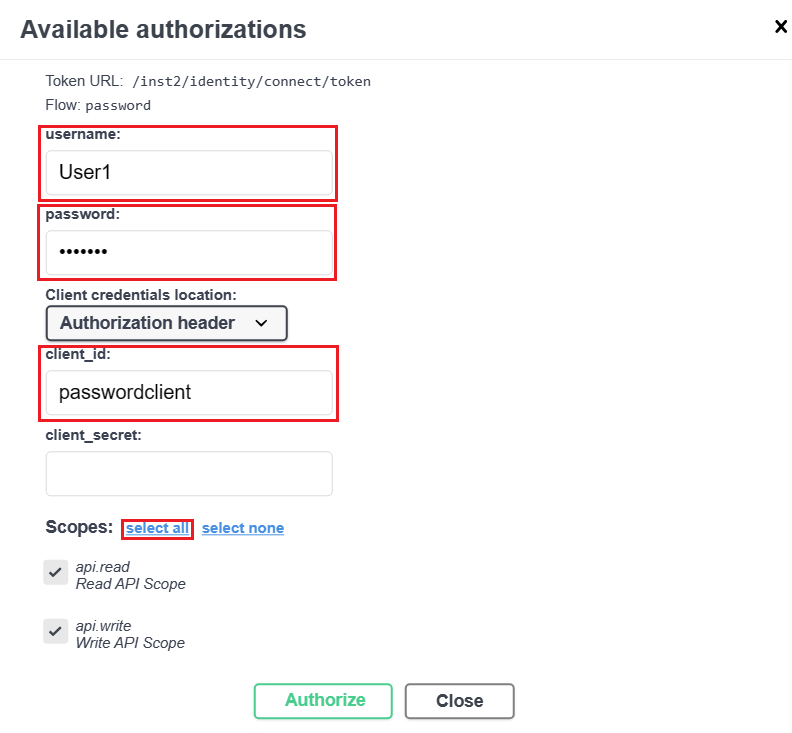
Click Authorize.
It may take a few moments to return the authorization result.
Check that the session is authorized (a bearer token is issued at this stage).
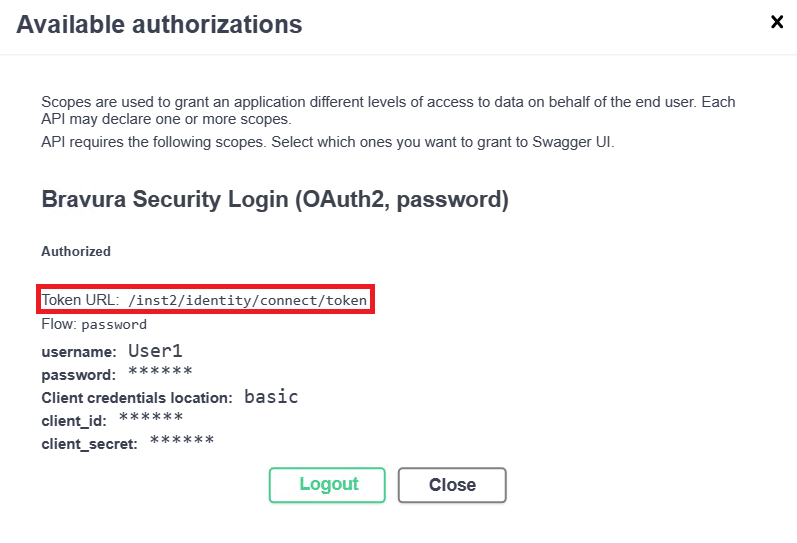
The bearer token value will not be explicitly shown upon log in using Swagger UI.
Note that authenticating to the REST API uses a Token URL, which is different than a Request URL, which is used for calling endpoints.
Exit out of the dialog box, by either clicking Close or x on the top right of the dialog box.
Get a list of accounts
Now that the user is logged into the REST API, they can obtain a list of their associated accounts. The endpoint used to achieve this is GET /accounts.
From Swagger UI, locate GET /accounts, which is under Accounts.
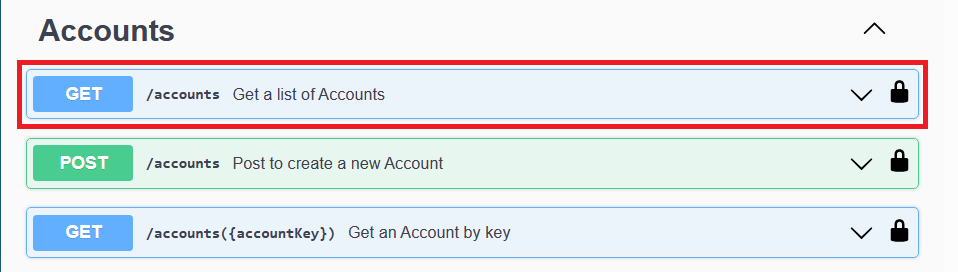
Click GET /accounts.
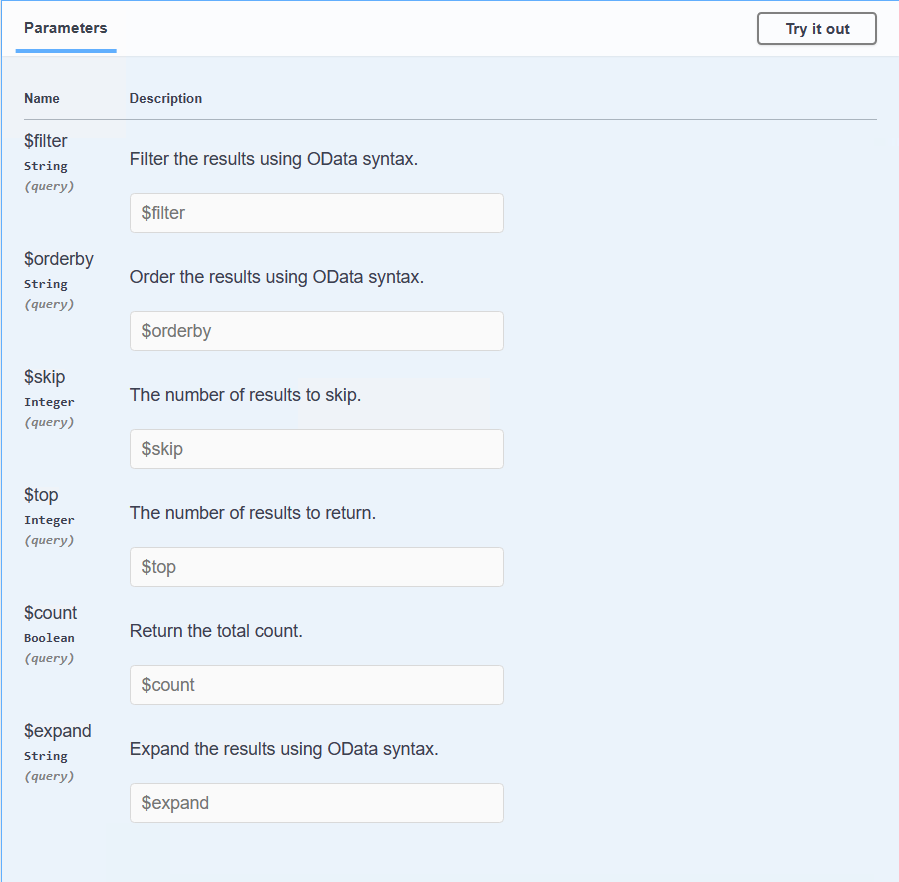
View the parameters available for the endpoint, which is mainly used to format or filter the results returned. These are optional fields but can be useful to specify, especially if there are a lot of results returned. Not all endpoints will have the same parameters, and some may have required fields, so be sure to go through each endpoint to see what is applicable.
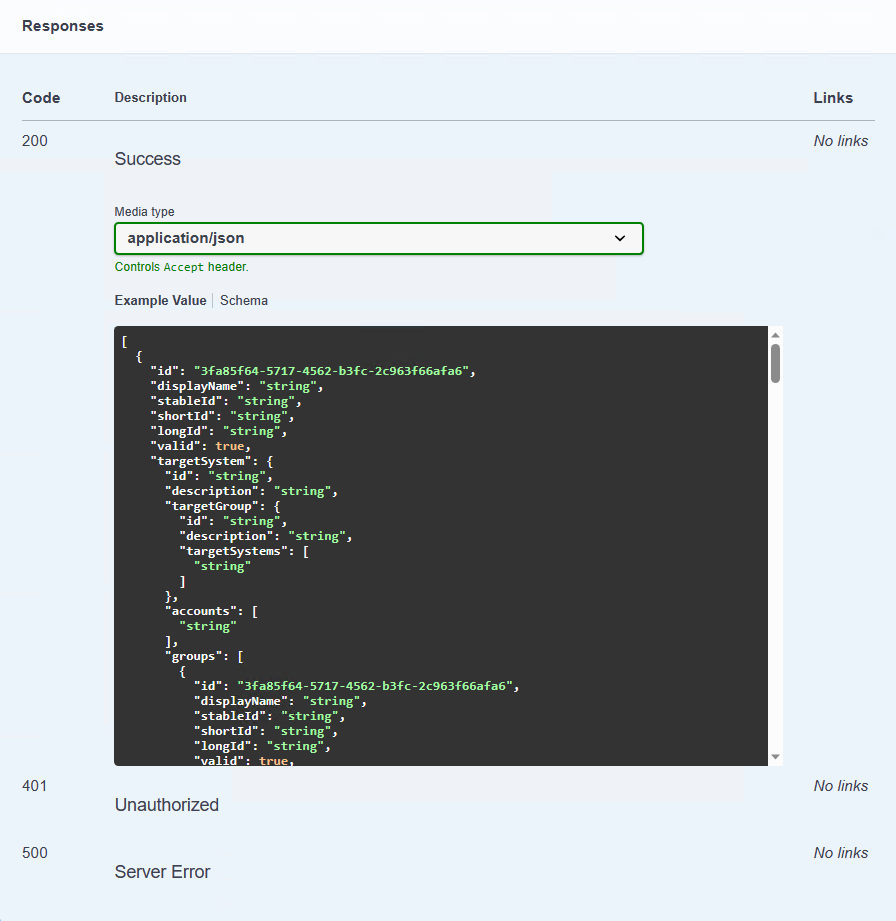
You can also see what response codes will be returned from this endpoint, as well as an example response body in json format.
Click Try it out to get the list of accounts for User1.

We can leave the parameters blank for now.
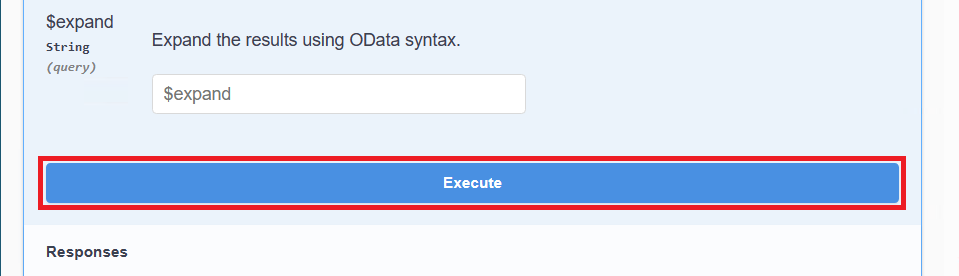
Scroll down and click Execute.
Check that the endpoint returned a 200 (Success) code, and displayed the response body with the list of User1’s accounts.
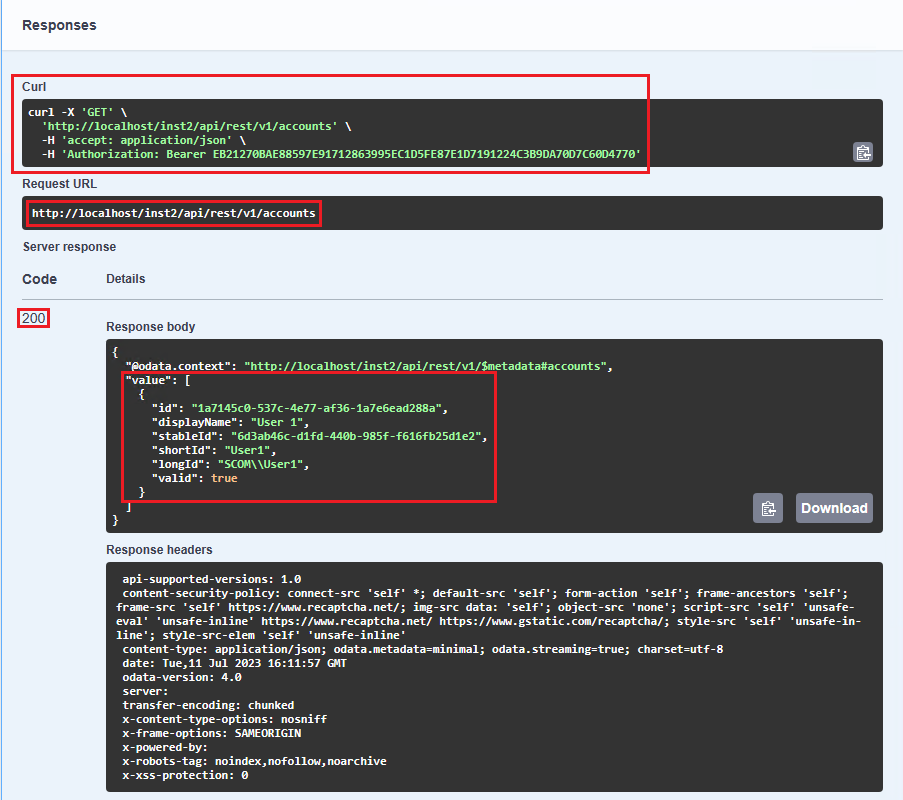
You should also see the Curl and Request URL used for the endpoint execution. This can be useful to note if you want to know what headers and other inputs are required if you want to execute this in an external program. It is where you can also see the bearer token issued for this session.
Choose the account to change the password for. The account’s id is needed, so for this example, we will choose the first one with id: 1a7145c0-537c-4e77-af36-1a7e6ead288a.
Get an account by key
This step is not required, but it can be helpful to see which endpoint can be used if you already know the account’s ID, which we do from the previous step. The endpoint used to achieve this is GET /accounts({accountKey}) .
From Swagger UI, locate GET /accounts({accountKey}), which is under Accounts.
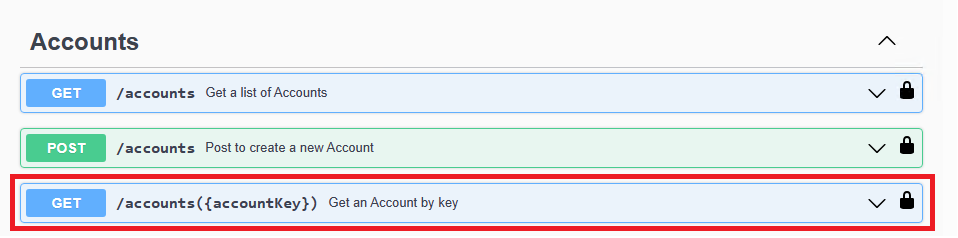
Click GET /accounts({accountKey}).
Click Try it out.

Since we already know the ID of the account, fill it in the accountKey field.
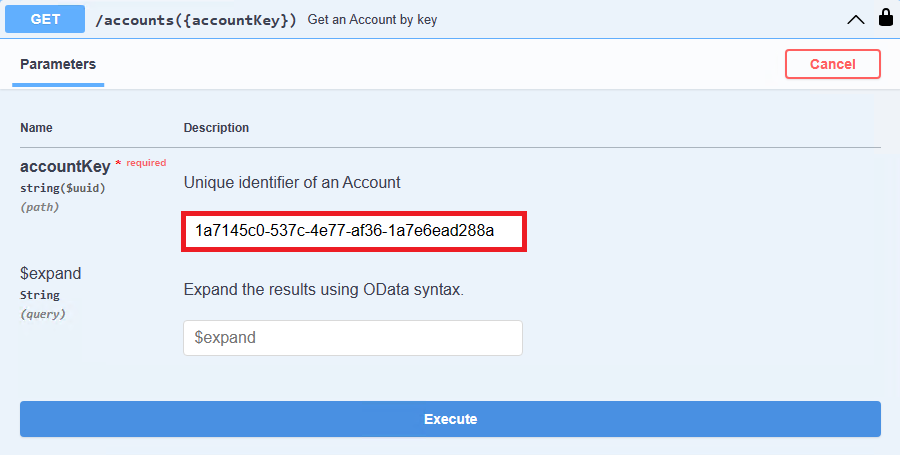
Click Execute.
Check that it returns a 200 (Success) code and displays the response body with the chosen account of User1.
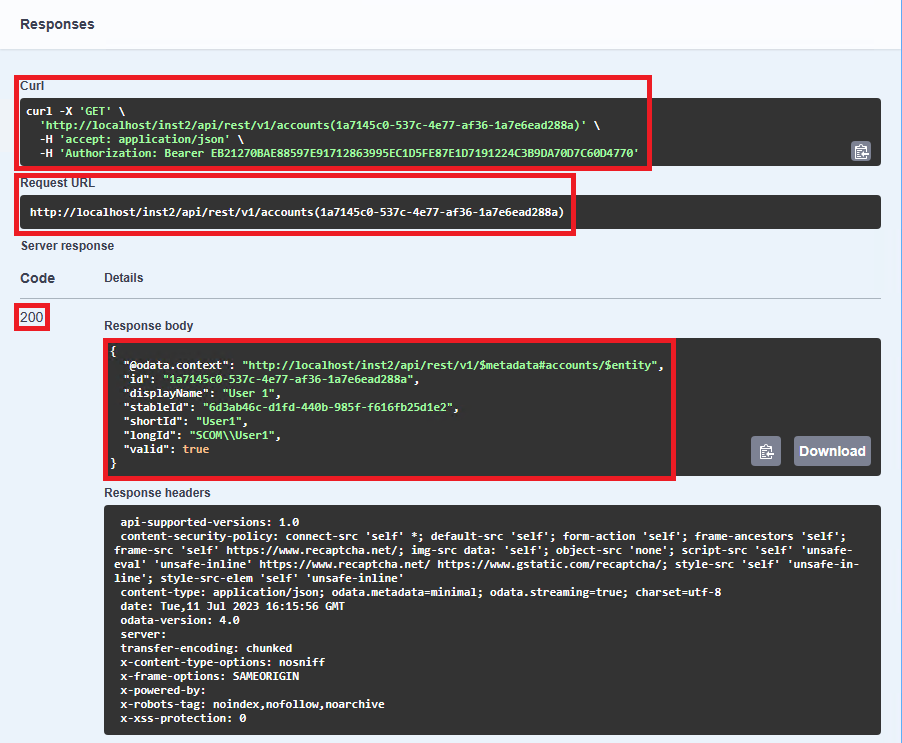
It is good practice to observe the Curl and Request URL to see exactly what is being passed in.
Changing an account password
Now that we know the ID of the account, we can now change its password. The endpoint used to achieve this is PATCH /accounts({accountKey}).
In 12.9 and later, this call requires an X-CSRF-Token header, and Swagger UI does not send it. You send the request with curl instead.
Request a token, and save the cookies that the response sets. Replace the placeholders with your values.
curl --cookie-jar cookies.txt --data-urlencode "grant_type=password" --data-urlencode "client_id=passwordclient" --data-urlencode "username=User1" --data-urlencode "password=<password-of-User1>" "https://<server-fqdn>/<instancename>/identity/connect/token"
Copy the
access_tokenvalue from the response. This token is separate from the one that Swagger UI holds.Note
On Windows, run
curl.exefrom Command Prompt. In PowerShell,curlis an alias for a different command and does not accept these options.Open
cookies.txtin a text editor. Copy the value at the end of the line for theBravuraSecurityFabric-CSRF-Tokencookie, and then decode it. Replace%2Fwith/,%2Bwith+, and%3Dwith=.Save the following json as
password.json. The PATCH /accounts({accountKey}) endpoint supports replace, remove, and test operations. This example uses the replace operation to change the account’s password toQwerty123.[ { "op":"replace", "path":"/password", "value":"Qwerty123" } ]Send the request. Replace
<access-token>,<decoded-csrf-token>, and<accountKey>with your values. The--includeoption shows the response headers.curl --include --request PATCH --cookie cookies.txt --header "Authorization: Bearer <access-token>" --header "X-CSRF-Token: <decoded-csrf-token>" --header "Content-Type: application/json" --data "@password.json" "https://<server-fqdn>/<instancename>/api/rest/v2/accounts(<accountKey>)"
Check that the response starts with
HTTP/1.1 202 Accepted. The request was submitted, but this does not tell you the status of the password change.The
locationresponse header contains the operation key of the request. Use it to get the operation result.
Get the operation result
We can get the operation result of the password change since we know the operation ID. The endpoint used to achieve this is GET /operations({key}) .
From Swagger UI, locate GET /operations({key}), which is under Operations.

Click GET /operations({key}) .
Click Try it out.
Fill in the key field with the operation ID of the password change.
Click Execute.
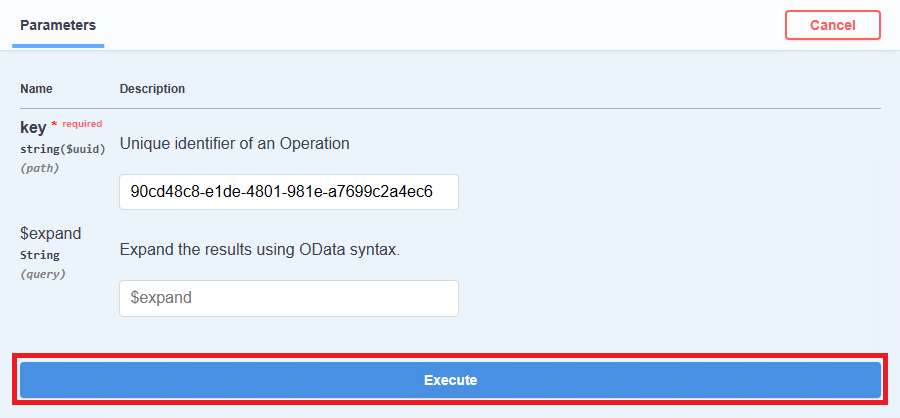
Check that it returned a 200 (Success) code as well as display the response body containing the status of the password change (in this case, it also succeeded).
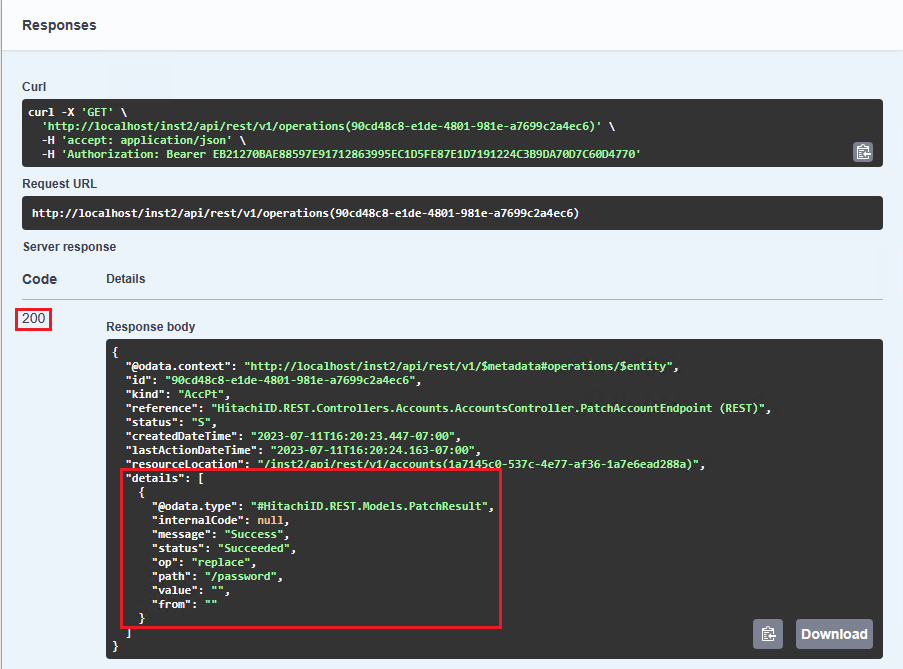
Typically, the details of the operation should be returned instantly, however it could take a few moments to appear. If it does not appear, this means that the operation is still not complete. In this case, you may need to run the endpoint several times until you get a result.
Status codes:
S = Success
F = Failure
R = Still running
Test the password
The steps to test a password is identical to changing a password, except with a different operation type. It will also require running an endpoint to get the operation result.
In 12.9 and later, you send the PATCH request with curl, as described in Changing an account password.
Save the following json as
password.json, replacing the earlier file. This example uses the test operation to verify that the account’s password isQwerty123.[ { "op":"test", "path":"/password", "value":"Qwerty123" } ]Send the request. Use the access token and the decoded CSRF token that you got in Changing an account password. If an hour has passed, the access token has expired, so repeat the token request and the cookie decoding first.
curl --include --request PATCH --cookie cookies.txt --header "Authorization: Bearer <access-token>" --header "X-CSRF-Token: <decoded-csrf-token>" --header "Content-Type: application/json" --data "@password.json" "https://<server-fqdn>/<instancename>/api/rest/v2/accounts(<accountKey>)"
Check that the response starts with
HTTP/1.1 202 Accepted. The request was accepted, but you must check whether the test operation completed.Copy the operation ID from the
locationresponse header.From Swagger UI, locate GET /operations({key}), which is under Operations.
Click GET /operations({key}).
Click Try it out.
Fill in the key field with the operation ID of the password test.
Click Execute.
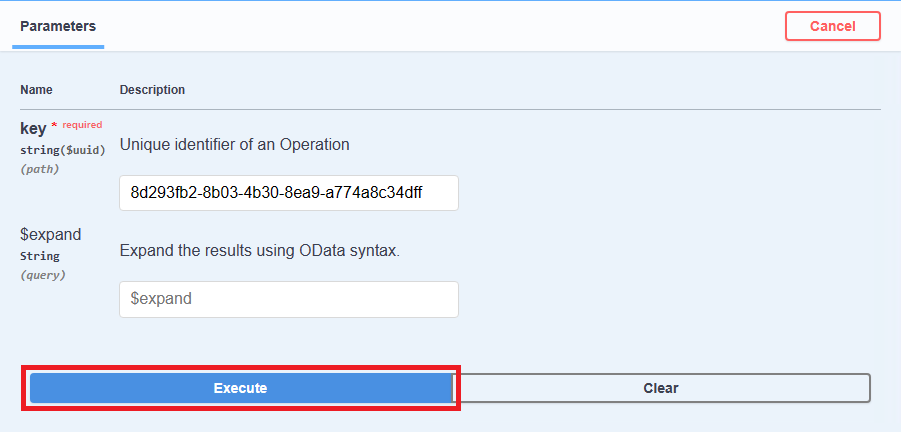
Check that it returned a 200 (Success) code as well as display the response body containing the status of the password test (in this case, it also succeeded)
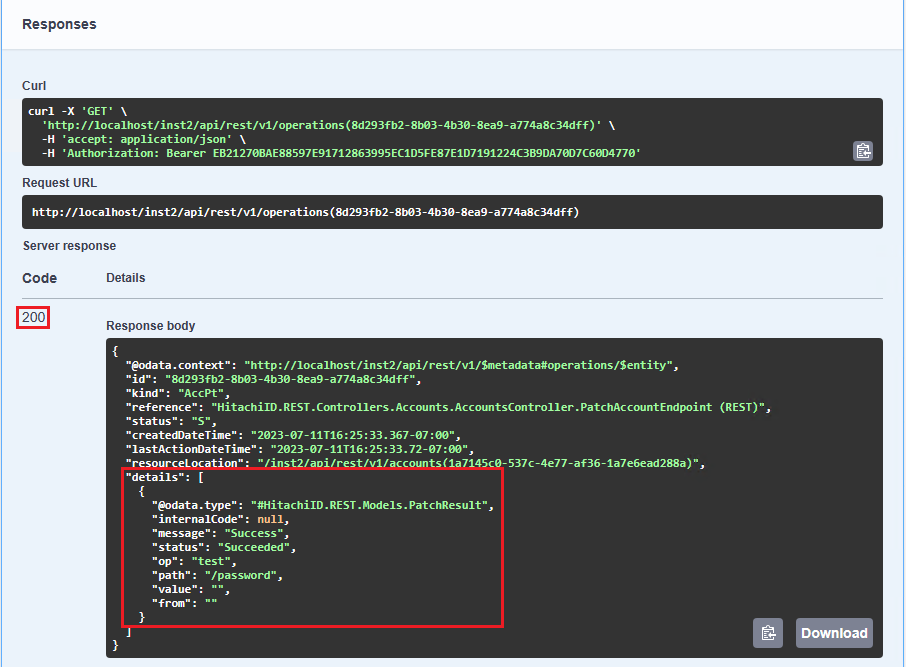
The details of the operation should be returned instantly; otherwise you may need to run the endpoint several times until you get a result.
Exercise
Since the account password of User1 has been changed to Qwerty123, try to change it back to the original password and verify that it has been successfully changed, all using endpoints from the REST API.
Logout
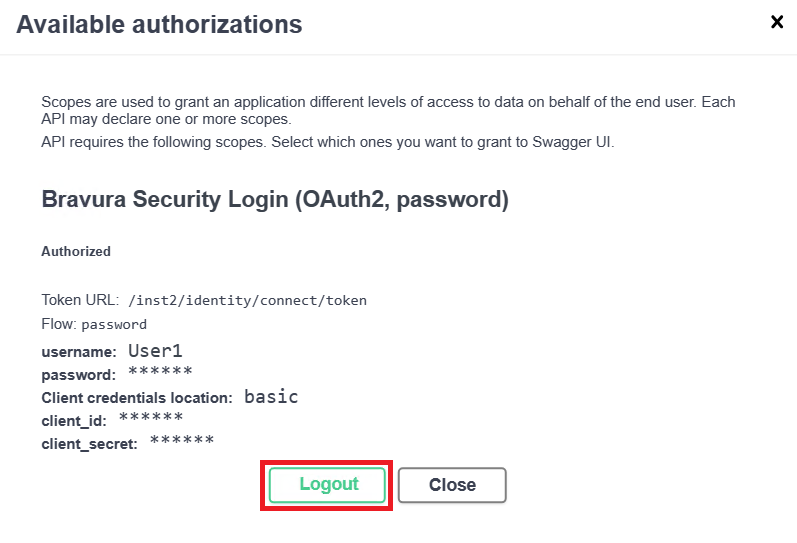
After changing and testing the password, we can log out of the REST API. This will revoke the authentication token and prevent further calls to the REST API unless the user logs in again.
Click Authorize.
Click Logout.
Next steps
By now, you should be familiar with how to log into the REST API and run endpoints. You can also try running REST API endpoints on Postman, by importing the schema referenced in the Swagger UI, ie:
http://<ip-of-fabric-instance>/<instancename>/api/rest/swagger/v1/swagger.json
Refer to the REST API Reference documentation for more information on supported endpoints.