Updating group members
Group owners can use the Groups app to update group members, including adding or removing users and child groups.
Owners can select multiple groups, then add or delete multiple accounts or groups as members. Note that when multiple groups are selected, separate requests are sent to add or delete members.
Add members to multiple groups
The following procedure describes how a group owner can add account members to multiple groups using the standard Add members request. To include accounts as members of other groups:
As a group owner, navigate to the Groups app.
Click My groups in the Filter panel.
Select multiple groups from the Results panel.
Click Add members .
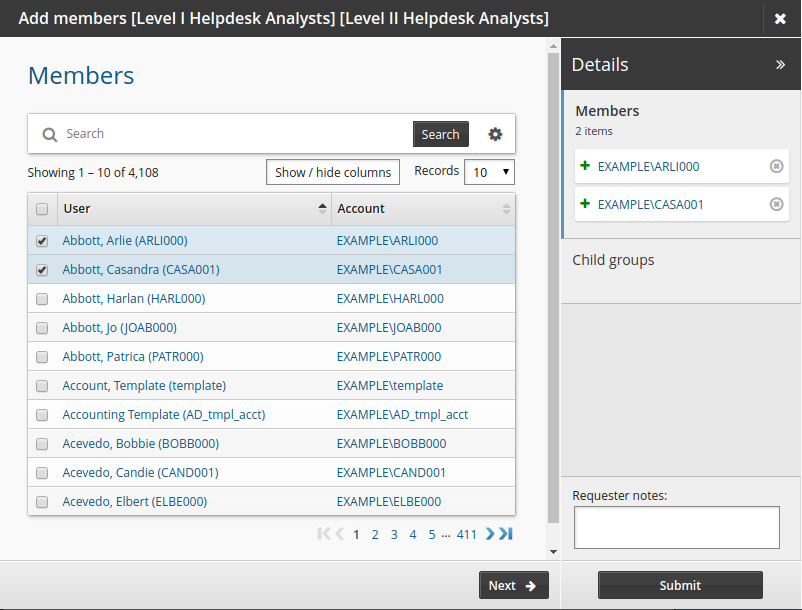
Select the checkboxes for the members you want to add.
Click Submit.
Relevant authorizers are notified to review the request if necessary.
Update group members and attributes
The following example demonstrates how users can join a group and update a group attribute simultaneously.
Initially, a product administrator:
Adds a resource attribute that can determine when membership of a group expires.
Modifies the Update members request.
Update a group’s membership
To request an update to a group’s membership:
As a group owner, navigate to the Groups app.
Click My groups in the Filter panel.
Select a group from the Results panel.
Click Update members.
Select a user account.
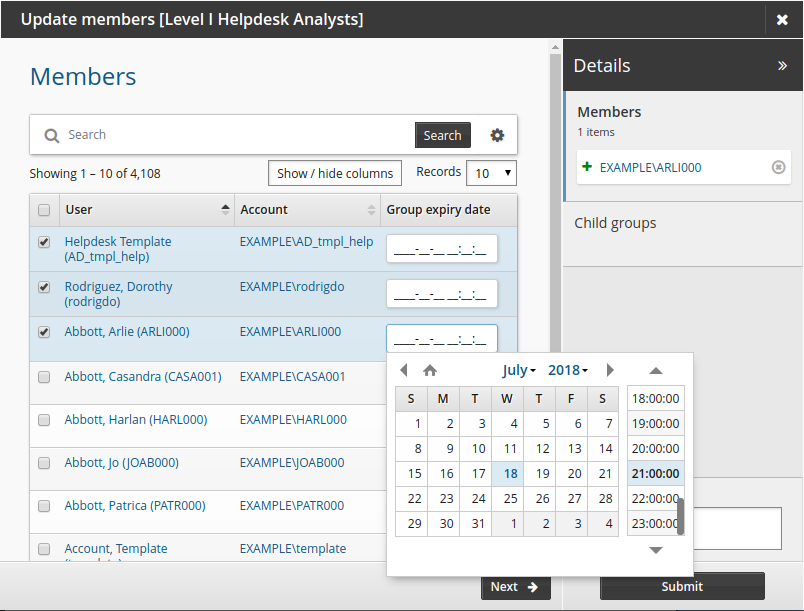
Select a Group expiry date.
Click Submit.
Relevant authorizers are notified to review the request if necessary.