Bravura Privilege Pattern
Privilege Pattern: Overview
Businesses often struggle with how to create an authentication workflow that will control which passwords are granted to users after collecting approval from account holders. Main challenges include:
Specific accounts or users may not require any authorization at all whereas others will.
Different users may require different permissions towards accounts, such as having the ability to reset an account password or only having the ability to request a password.
Management of employees being given access to specific accounts requires easy communication with privileged account owners that can be easily traced.
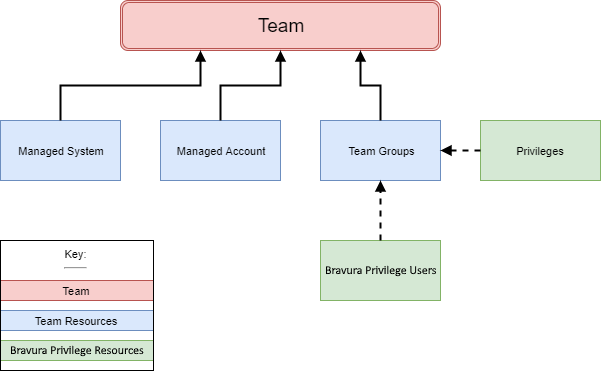
The Bravura Privilege Pattern deploys a team-based management and access model. This means that every resource within Bravura Privilege is managed by a team and all users’ access to those resources are governed by the teams that they are assigned privileges in.
Teams
Team management in Bravura Privilege Pattern delegates onboarding of systems and accounts and definition of access control rules to business stakeholders.
Team management is constructed around a number of concepts:
A team may represent a group of people, an application or an organizational unit.
Teams contain:
Managed systems with which Bravura Privilege is integrated.
Managed accounts that appear on managed systems and whose passwords Bravura Privilege may set.
Team groups used to assign privileges to Bravura Privilege users.
Team groups contain:
Privileges such as trustee, approver, requester. See Privileges and appropriate users for more information.
Individual Bravura Privilege users
Managed groups of accounts defined on a target system, such as AD or LDAP, whose membership is monitored and managed in Bravura Security Fabric . On some target systems, this can include groups inside groups.
Team vaults Used to store and retrieve credentials for target systems that do not communicate with Bravura Security Fabric or other secrets (e.g., a safe's combination). They are not intended to set or randomize credentials stored within them. Team vaults contain:
System vaults Representations of systems in the environment, but without a connector or technical integration.
Vault accounts Representations of accounts on system vaults, along with stored (but not actively managed) passwords.
Proxy zone A set of Bravura Security Fabric proxy servers responsible for running connectors that communicate with a set of systems, typically in the same location or on the same network segment. This is typically required when direct connection is blocked by a firewall. Bravura Privilege may also connect to managed systems discretely; that is, a connector runs locally on the Bravura Privilege application server and uses an appropriate API and network protocol to sign into the system in question.
Team administrators
Team administrators are responsible for creating and deleting teams, and for managing team group memberships. When creating a team, a team administrator assigns trustees to it.
Both team administrators and team trustees can manage team group memberships. However, once a trustee is assigned to a team, the team administrator will need the trustee's approval to make changes to that team. It is best practice to keep these roles separate — a team administrator should not also be a team trustee for the same team.
The team administrator role is typically given to someone who understands how the business is structured. This may be a technical person who also serves as a product administrator for Bravura Privilege, or it may be someone more involved in business operations.
To be a team administrator, a user must be a member of the PAM_TEAM_ADMINS user class.
Team trustees
Trustees are the day-to-day managers of a team's resources. They add members, assign privileges, and onboard, update, and offboard managed resources. There are several types of trustee privileges that can be assigned:
Team trustee — Can modify team settings, group memberships, and privileges.
Account trustee — Can make account management requests (onboard, update, offboard accounts).
System trustee — Can make system management requests (onboard, update, offboard systems).
Vault trustee — Can make vault management requests.
LC trustee — Can make large credential management requests.
OTP trustee — Can create and request access to OTP API accounts.
Subscriber trustee — Can validate subscribers of onboarded accounts.
When a user is assigned a trustee privilege, they are automatically added to the corresponding PAM_PRIV_<privilege> user class, which grants them access to the pre-defined requests (PDRs) for that privilege. For example, an account trustee is added to the PAM_PRIV_ACCOUNT user class. Pre-defined requests are covered in detail in later units.
You can also explicitly add users to the PAM_PRIV_TRUSTEES user class via the user class menu. Users added manually to this user class will be able to manage all teams with team trustee privileges, but their requests to modify any team will be sent to that team's trustee for approval.
Note
Do not add groups to the PAM_PRIV_TRUSTEES user class.
Privileges and appropriate users
Within the team structure, team groups are created to assign privileges to. Team group members can be assigned the following privileges:
Team trustee — A user who can make team management requests, add members and assign privileges, onboard, update, and offboard managed resources.
System trustee — A user who can onboard, offboard, and update privileged systems.
Account trustee — A user who can onboard, offboard, and update privileged accounts.
Vault trustee — A user who can create, archive, and update vault systems and accounts.
Subscriber trustee — A user who can make subscriber validation requests.
OTP trustee — A user who can create and use OTP accounts.
LC trustee — A user who can create and update vaulted credentials.
Requester — A user who can make access requests.
Requesters who require approval are generally users who do not need access to the managed account on a regular basis but should still have access in the event of an emergency or an occasional circumstance.
Approver — A user who can allow or disallow access requests.
Approvers are also referred to as authorizers in the core Bravura Security Fabric configuration and documentation.
Approvers are often the owners of the managed account or an appropriate manager of the requester.
Auto Approved — A user who can check out access to systems and accounts without making an access request. These users must also have the Requester privilege, as the Auto Approved privilege does not grant permission to make access requests on its own.
Users who check out an account on a regular basis should be given the auto-approval privilege to avoid holding up their work and to avoid approver fatigue.
Credential Manager — A user who can override or randomize the stored password on a checked-out account. These users must also have the Requester privilege.
The credential manager privilege is often granted to the owners of the managed account.
Privilege Pattern: Installation
Team management features are provided by installing components (Manage components > RefBuild ):
RefBuild.pam_team_management - provides configuration for both system onboarding and vault management
RefBuild.pam_team_onboard_management - provides configuration for system onboarding only
RefBuild.pam_team_vault_management - provides configuration for vault management only
The following are optional scenario components you can install to provide configuration support for target systems:
Scenario.pam_system_type_linux provides support for Linux type target systems
You must install the Python requirements for the connector. See Linux Server (SSH) for more information.
Scenario.pam_system_type_oracle provides support for Oracle Database type target systems
Scenario.pam_system_type_mssql provides support for SQL Server type target systems
Scenario.pam_system_type_solaris provides support for Solaris type target systems
Scenario.pam_system_type_vault provides a vault system type that can be used to emulate other target systems
Scenario.pam_system_type_winnt support for Windows NT type target systems
The following are optional scenario components you can install to provide disclosure methods:
Scenario.pam_account_management_disclosure_view_copy allows View and Copy access
Scenario.pam_account_management_disclosure_guacamole_rdp allows remote desktop access to Windows NT compatible systems using Guacamole
Scenario.pam_account_management_disclosure_guacamole_ssh allows SSH access to SSH-enabled systems using Guacamole
Scenario.pam_account_management_disclosure_ms_sql_studio allows SQL Management Studio access for Microsoft SQL Server
Scenario.pam_account_management_disclosure_mysql_cli allows access via MySQL CLI
Scenario.pam_account_management_disclosure_oracle_sql_plus allows SQL*Plus access for Oracle Database systems
Scenario.pam_account_management_disclosure_putty allows SSH access using PuTTY
Scenario.pam_account_management_disclosure_rdp allows remote desktop access to Windows NT compatible systems
Scenario.pam_account_management_disclosure_securecrt allows SecureCRT access to managed accounts
Scenario.pam_account_management_disclosure_sqldeveloper allows SQL developer access for Oracle Database systems
Scenario.pam_account_management_disclosure_toad allows access via Toad for Oracle systems
Scenario.pam_account_management_disclosure_winscp allows access via WinSCP
The following are optional scenario components you can install to provide additional functionality:
Scenario.pam_personal_admin_management, to grant specific users exclusive access to certain onboarded accounts
Scenario.pam_subscriber_validation, to configure subscriber notification for onboarded accounts
Scenario.pam_system_automated_offboard, to offboard accounts and disable systems using Resource Management System (RMS) if the system cannot be contacted after a certain amount of time
Scenario.pam_system_automated_deletion, to delete systems and its accounts using RMS if the system cannot be contacted after a certain amount of time
Example: Installing Bravura Privilege Pattern
In this example, you will load, list, view and install Bravura Privilege Pattern components using the Manage components app.
Click below to view a demonstration.
To install Bravura Privilege Pattern components:
Log in to the Front-end (PSF) as superuser.
Click Manage Components > RefBuild.
Select the Bravura Privilege Pattern component,
RefBuild.pam_team_management.If the
RefBuild.pam_team_managementcomponent is not showing up, try clicking Reload DB under the ACTIONS header on the left panel.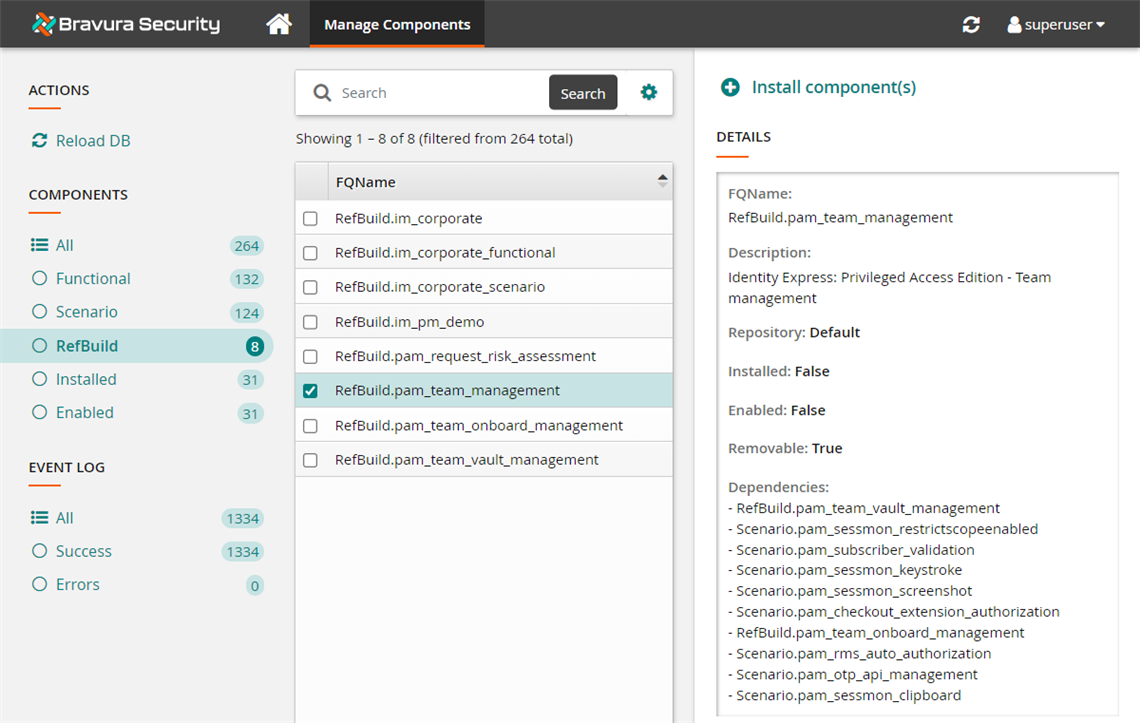
Click Install component(s) from the Actions panel on the right.
The component management program installs the components along with any dependencies. This may take some time depending on configuration requirements and dependencies. You should see Completed install for component messages for each selected component in the TASK STATUS section of the Actions panel.
If the installation seems to by taking a very long time or seems stuck, navigate back to the home page and return to the Manage Components > RefBuild page to see if the installed status for the component has turned to
True.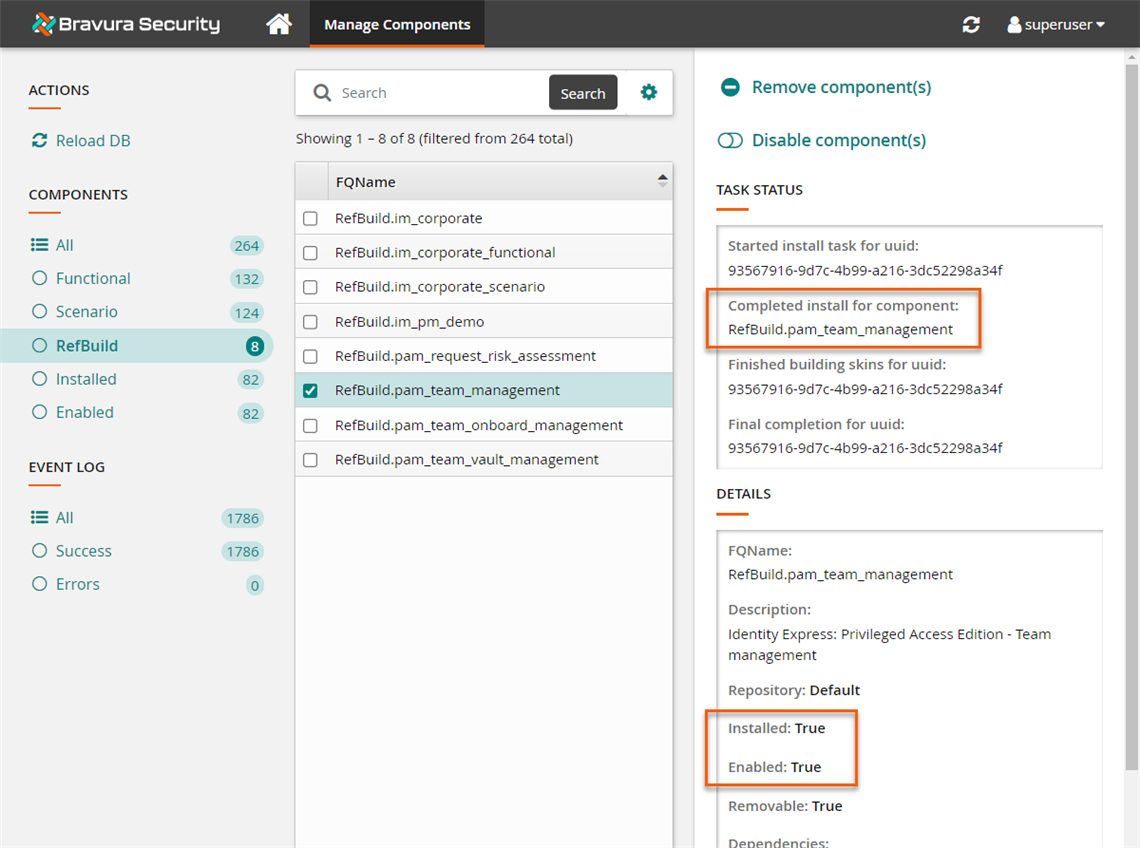
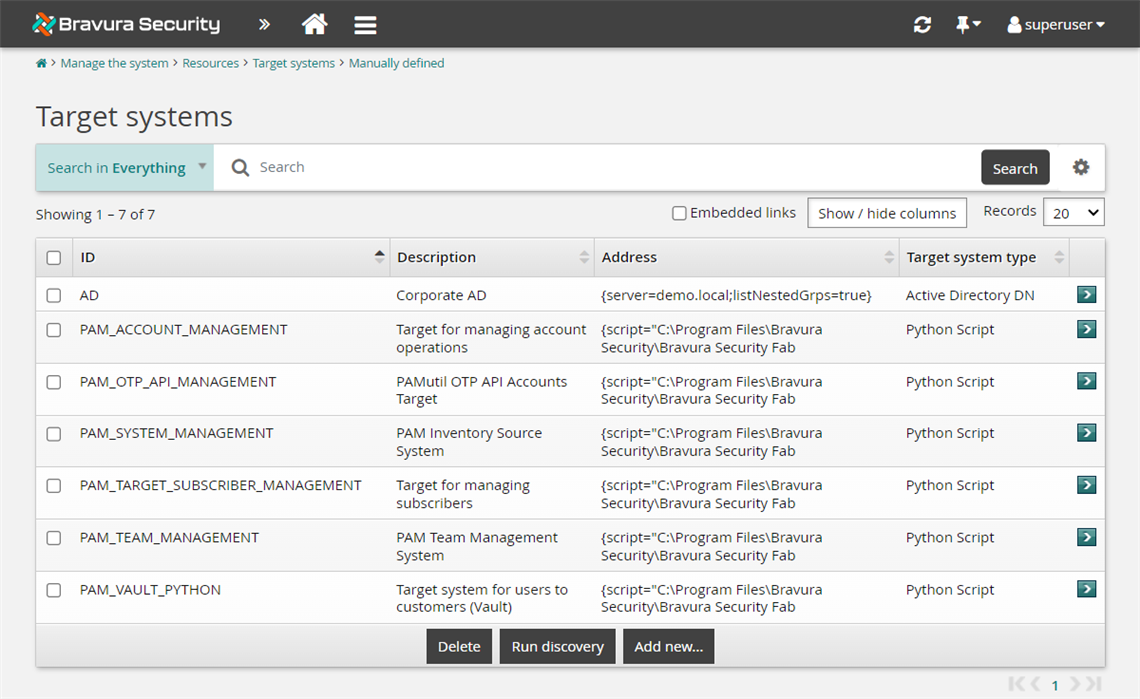
When you install a component, the component management program creates the database tables, framework and configurations that are necessary for the plug-in points to function. Additional in-product configuration may still be required to run the scenarios properly.
Take a look at some of the new configuration support the reference build components add to the manually-defined target systems by navigating to Manage the system > Resources > Target systems > Manually defined .
Performance limitations
Users requesting privileged access to accounts via the Privileged Access app may experience slowness when loading managed accounts. This is particularly noticeable for users who are members of a large number of teams. The delay is caused by the time taken for the search filter criteria to calculate and determine which managed accounts to display. Consequently, users may face longer load times for the managed account list to appear.
To minimize performance issues, it is recommended that users refrain from being members of more than 100 teams, although this may be unavoidable. To mitigate these issues, consider implementing the following strategies:
Refrain from assigning users both the 'Requesters' and 'OTP Trustees' privileges simultaneously, as this increases the complexity of the search filter criteria.
Include the user in the PAM_TRUSTEE_HELP_DESK user class , which simplifies the filtering process and can significantly improve loading times. However, be aware of the following implications:
This grants users visibility into managed accounts across all teams, but access requests will still require approval from a team approver unless the user has ‘Auto Approved' privileges.
It enables users to access and submit predefined trustee-related requests, which will still require approval from a trustee.